How To Submit a Dealer Application
Follow these steps to fully submit your Vendor Application
Sign into FC’s registration portal
Start by signing into (or creating an account at) reg.furtherconfusion.org.
Create your Business Profile
Submitting Business Information
Once signed in you will see a navigation bar on the left. Select “Vendor” and you will be presented with a page to enter your business information. This section collects your legal business information, which is used for tax purposes.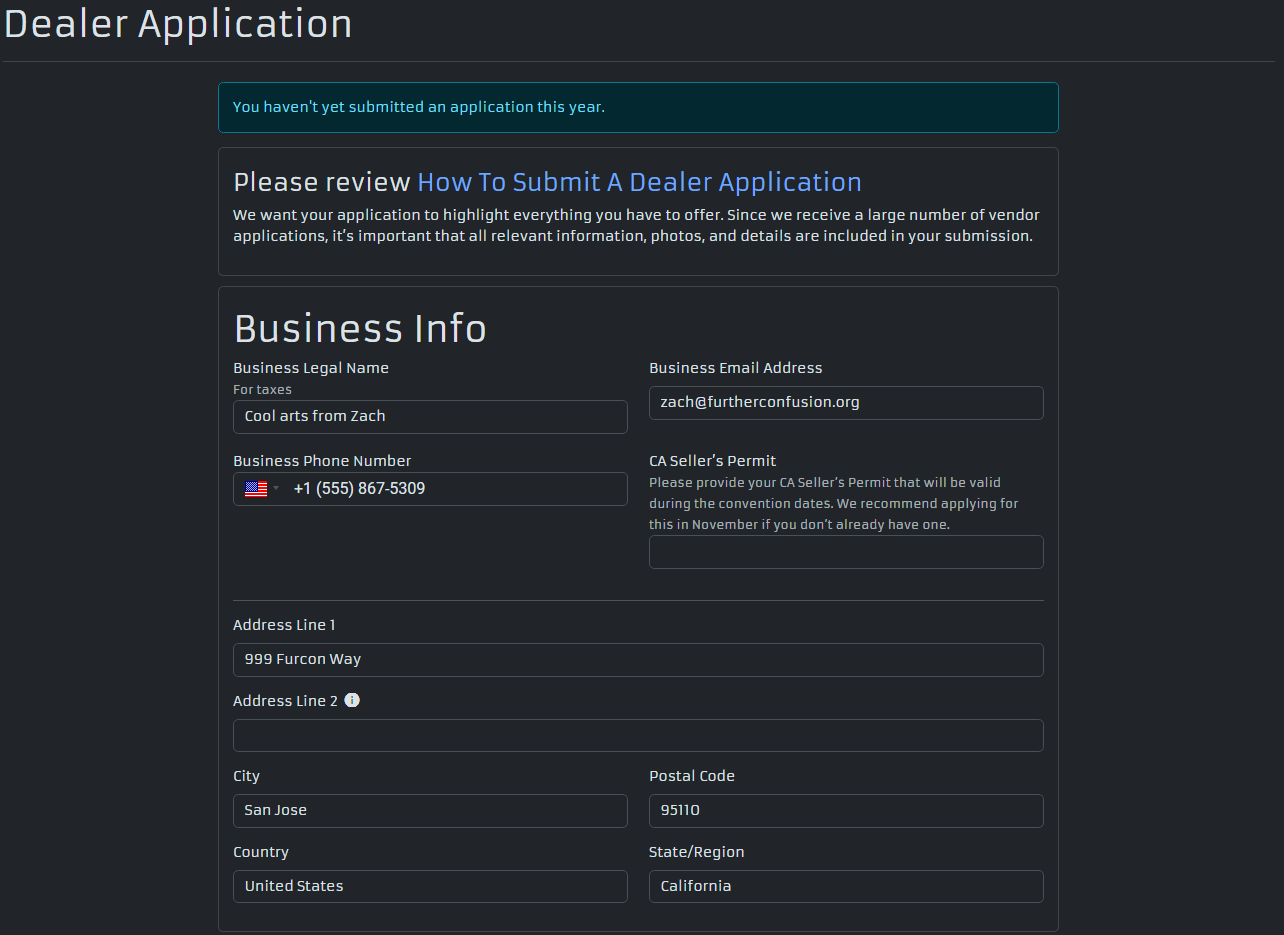
Please fill in as much information as possible. We have put informational fields to help explain what we are looking for under each category.
Seller’s Permit
You are not required to have a valid California Seller’s Permit to apply. However, you will need a valid permit prior to the start of the convention. We will send reminders about this as the convention approaches. We will confirm that all Seller’s Permits are valid in advance of the convention.
Submit Business Information
Once you fill in all your information, make sure to hit “Submit” at the bottom of the page! You will be able to go back and edit this information at a later time before the close of submissions if needed.
Business Socials Info
Below the Business Information section, you will find a Business Socials Info section.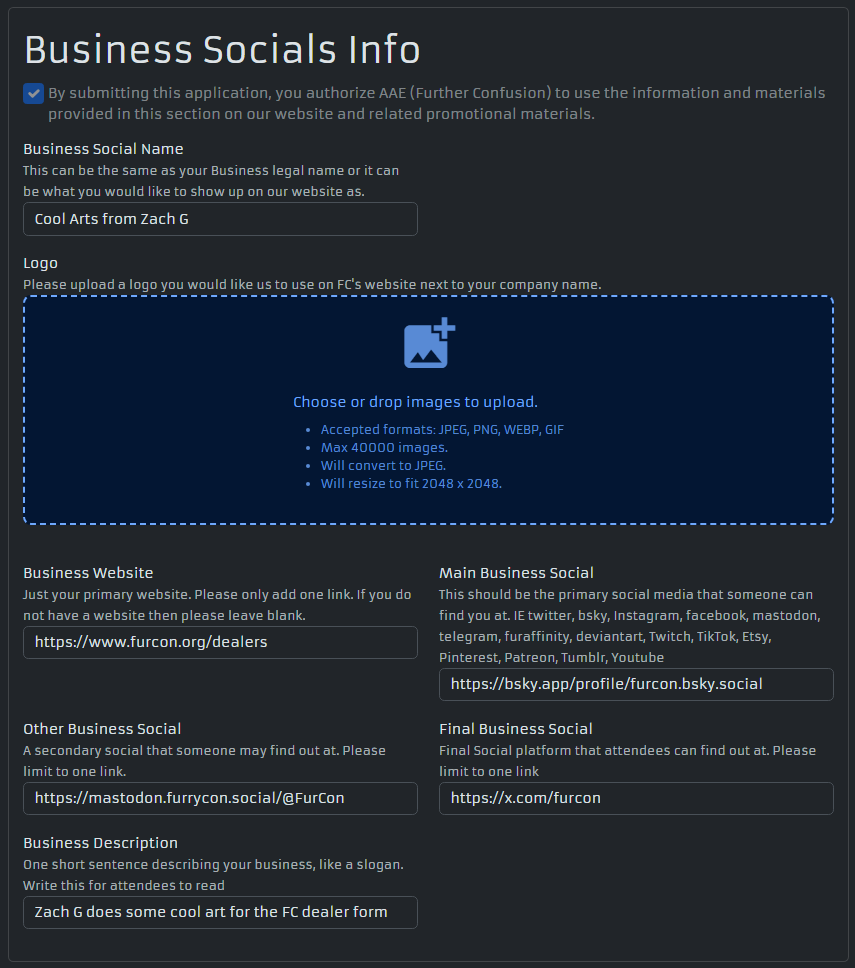
At the top of this section is a checkbox: “By checking this you agree to let FC use the info in the ‘Business Socials Info’ section of this form on our website.” This information will only be published to our website if that box is checked. If you leave it unchecked, none of the Business Socials Info will appear publicly.
If you do opt in, please fill in your Business Social Name, Logo, Website, up to three social media links, and a one-line Business Description.
Important: Before submitting, verify that all links you enter are correct and publicly accessible. We suggest opening each link in an incognito (private) browser window to confirm it loads without any issue!
Product Info
After submitting your Business Information, you will be brought to the Product Info section.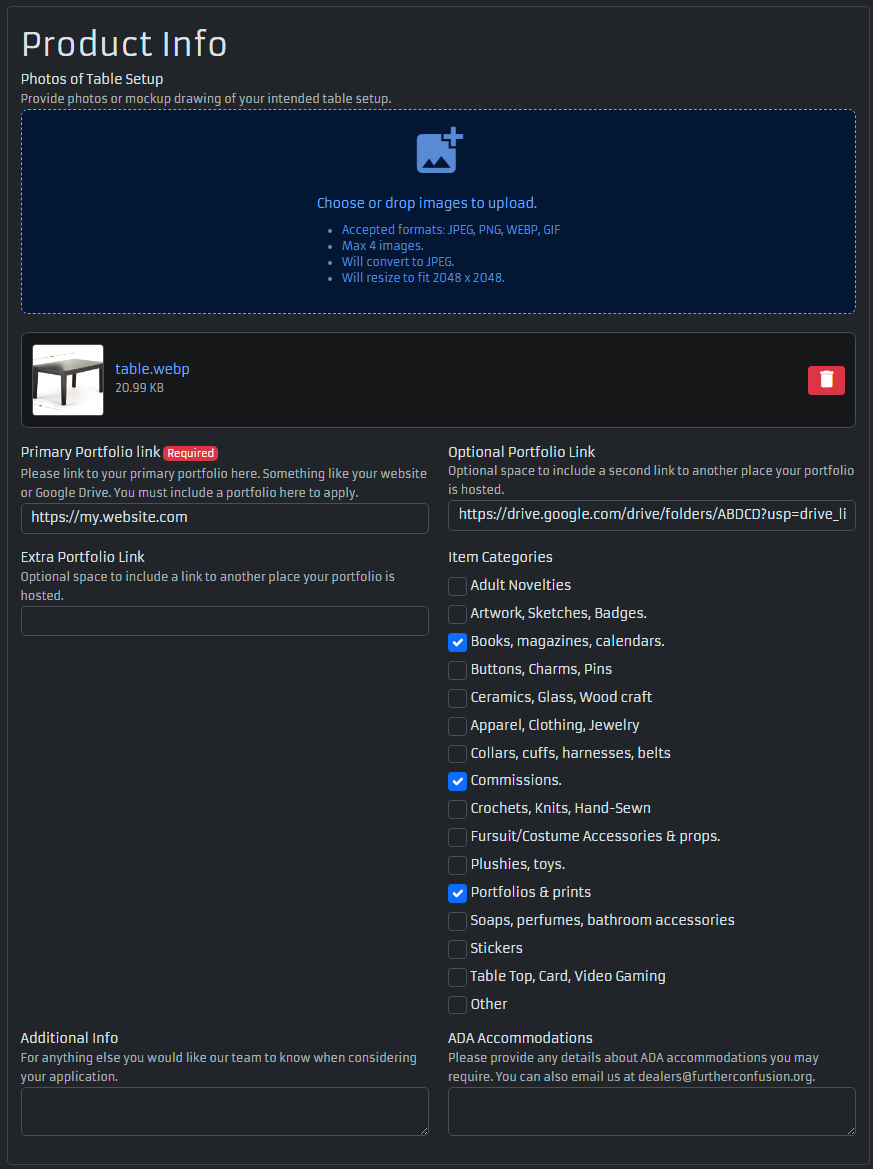
Photos of Table Setup
You can enter up to 4 images of your Table Setup. The intent is to show us how you will use any space allotted. These can be hand drawn, photos from past conventions, or even a mocked-up setup in your own home.
Portfolio Links
A primary portfolio link is required to apply. You may optionally provide up to two additional links.
Before submitting this form, test every portfolio link from an incognito (private) browser window. Links that require a login or account to view may not be reviewed by our judges. We recommend uploading your work to a Google Drive folder and sharing it with the link set to “anyone with the link” — this is the most reliable way to ensure we can access your portfolio. Your portfolio links are only shared with our judging panel for the review process and won’t be shared any further.
Item Categories
Check all categories that apply to the products or services you intend to sell. If you are applying for space at more than one vendor hall, select all categories across all of them.
Additional Info and ADA Accommodations
Use the Additional Info field for anything else you would like our team to know when considering your application (such as special requests). Use the ADA Accommodations field to describe any accessibility accommodations you may need. Special requests are not guaranteed, but we will do our best to accommodate them. You can also email us at dealers@furtherconfusion.org for accessibility questions.
Agree to the Vendor Policy
Before continuing, you will need to read and agree to the Vendor Policy (see the Dealer Rules for a full breakdown).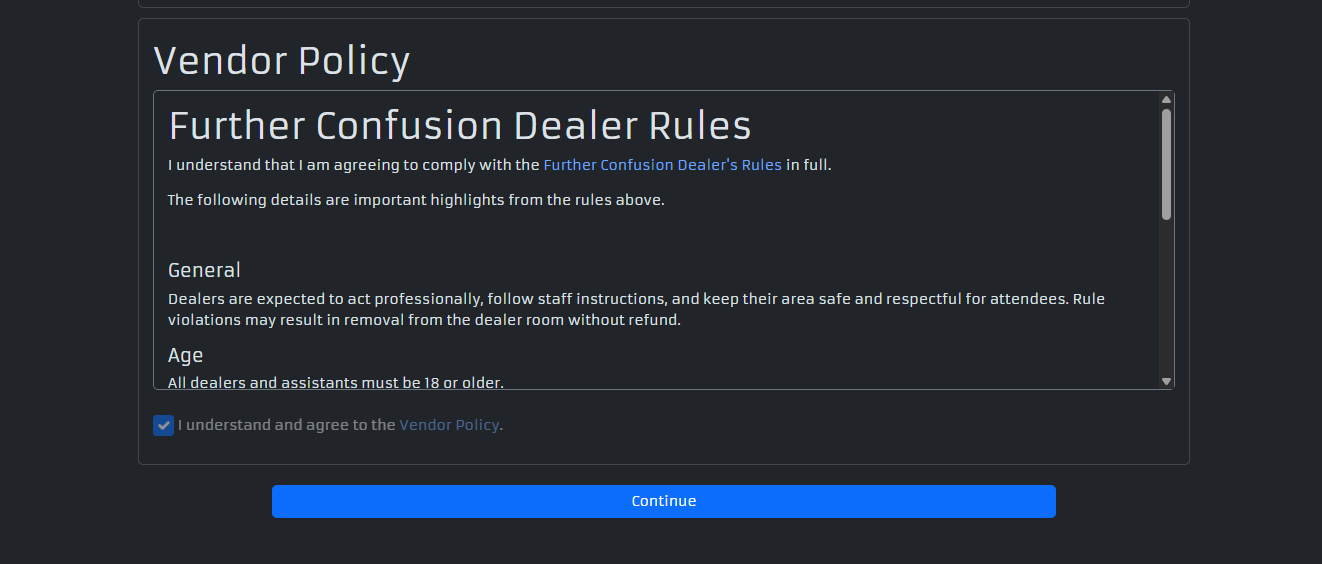
Please ensure you’ve read the policy and check the box confirming you understand and agree. Then click Continue.
Creating a Vendor Hall Application
You will see the following screen after hitting “Continue” on the business info page. You may notice a blue bar at the top that says “You haven’t yet submitted an application this year. Apply for one of the areas below”. This lets you know that you now need to create an application in one of our vendor halls (e.g. Dealers Den, Night Market, Artist Alley).
From here, select what part of the convention you are applying for. You can select one, two, or all of them. Applying to one does not impact your application for another with one exception: if you are accepted to the Dealer’s Den, you will not be eligible for Artist Alley.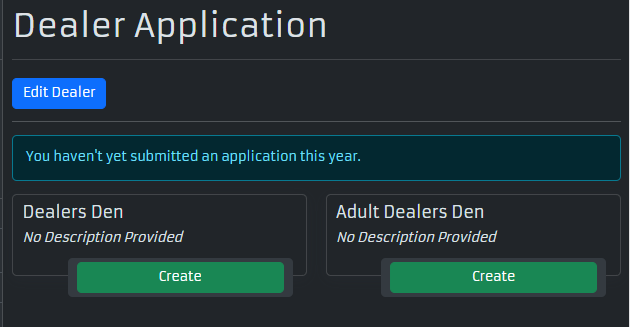
Submitting a Vendor Hall Application
Clicking the Create button for one of these applications will bring you to a page like the picture below. Please input any special requests (e.g., preference for a wall space because you will have multiple boxes of book inventory). Special requests are not guaranteed.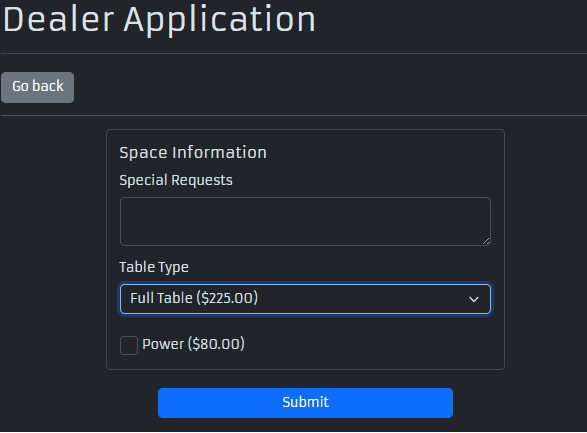
Please select the table type that BEST fits your needs from the drop down selector. When your application is being judged we will be looking at how well you make use of space. Please be aware that we have a limited number of spaces available, and in particular are very limited on how many Double/Triple Tables and Booths we can allocate.
Please check the “Power” box if you require electrical outlets for your table and setup. Please note that there is an extra charge for the power drop. If you are only intending to use power for things like recharging your phone, we will have a limited number of battery banks for loan in Dealer Services.
Once everything has been entered and selected, click the “Submit” button. After hitting Submit, the page will refresh and you should see the following screen.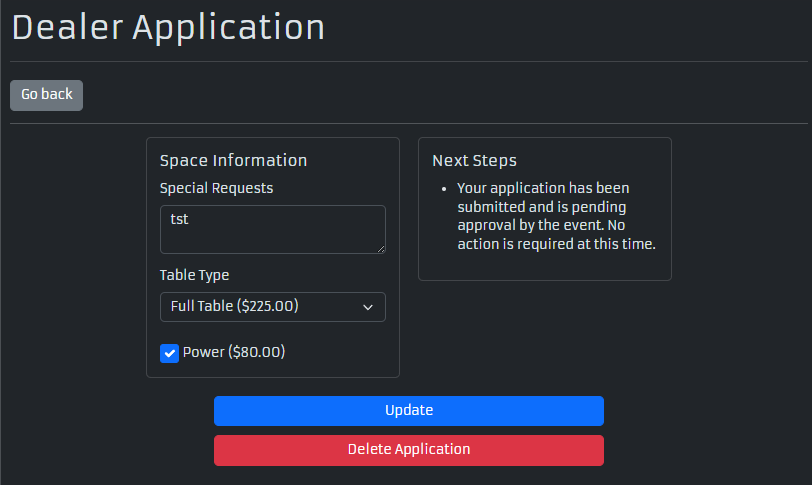
Confirm your application was submitted
Now click “Go back” and you should be at the Dealer Application page again (if you have trouble, click the “Vendor” link in the sidebar). If your application was submitted successfully, the Dealer Application page will look like the following image. Please note the “Pending Approval” next to the Dealers Den option.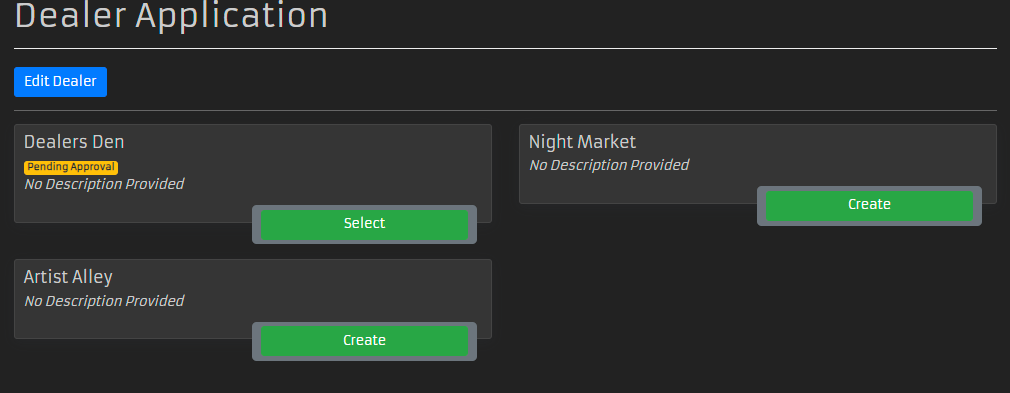
Now you can kick back and rest your paws - you are done with your application (well, unless you want to apply for the Night Market or Artist Alley as well; in which case, click Create for any of the other vendor halls you are interested in).
Additional Questions
If you have any questions, need additional help, or want to double check that your application went through, please email us at dealers@furtherconfusion.org.